Omega Reporting

Omega Reporting | Memphis Court Reporters

Schedule Now

Phone: 901.827.8671
info@omegareporting.com


  • Home
  • About Us
    • The Omega Difference
    • Client Feedback
    • About Lynette Mueller
      • Lynette Mueller Biography
      • Lynette Mueller Published Articles
      • Lynette Mueller Named as Fellow
    • Professional Memberships
    • Memphis Conference Facilities
    • Our Code of Ethics
    • Ethics and Gift Giving
    • Community News
  • Client Center
    • Client Center
    • Transcript Order Form
    • Online Transcript Repository
  • Client Services
    • Client Services
    • Realtime Court Reporters
    • Green Transcripts
    • Videography
    • Remote Depositions
      • Web Conference Depositions
      • Coronavirus: How we can help attorneys
      • 7 Remote Deposition Tips for Attorneys
      • Checklist for Remote Depositions
      • Handling of Exhibits for Remote Depositions
    • Videoconferencing
  • Contact Us
  • Lynette’s Blog
  • Reporters
    • Reporter Job Information and Billing

Five Tips for Looking Great in Remote Depositions

April 20, 2020 By Lynette Mueller Leave a Comment

Over the past several weeks, I’ve been refining my Zoom setup for remote depositions. Last week I shared how to optimize internet connections. This week let’s talk about video optimization!

Everyone wants to look their professional best when handling depositions for their clients. Even though we are the “silent person” in the legal proceedings, we should take care to ensure that we look the part of being our attorney client’s colleague and partner too. Dressing for success has so many benefits for us as professionals.

  • First impressions count. Because we live in such a visual-centric world today, it is even more important to dress the part. The first judgment by our peers should be a favorable one and we should command the respect we deserve in the legal setting.
  • Promotes self-confidence. The way you perceive yourself when dressed professionally translates to others as well. The confidence you radiate will have a lasting impression on your clients and potential clients.
  • Stay productive. In these past several weeks of quarantine, I’ve allowed myself a pajama day here and there. The days when I’ve gotten up, showered, dressed, and applied makeup have been the most productive days, by far.
  • Detail-oriented. When taking care with your appearance, it shows that you take pride in yourself. That one simple thing can demonstrate you stand behind your work in the same manner, which gives the client that extra confidence in your abilities.

So with that said, here are my tips to optimize your video setup for remote depositions:

Tip #1

If you’re utilizing the Zoom platform, be sure to take advantage of the Touch Up My Appearance feature. Per Zoom’s Help Center: “The Touch Up My Appearance option retouches your video display with a soft focus. This can help smooth out the skin tone on your face, to present a more polished looking appearance when you display your video to others.”

For either a Mac or Windows machine, here are the instructions to enable that feature:

  1. Access the Settings in your Zoom application. There are two ways you can get here:
    • In your Zoom client, login, then click Settings , then click Video . 
    • Alternatively, you can start or join a meeting, then click the arrow next to the video icon and choose Video Settings .
       pastedGraphic.png
  1. In the Video Settings dialog, click Touch up my appearance . 
    pastedGraphic_1.png
  2. Check this option to display your video with the touch up.

Zoom remembers your preference and uses it the next time you start or join a meeting on this computer.

Tip #2

When working from a home office, it can be a bit tricky to always have a neat and tidy workspace for remote depositions. If there is a blank wall in your home office, that is the best option. Like in a videotaped deposition, a backdrop is an effective means to clean up your space quickly.

Try to refrain, if possible, from using the virtual background in Zoom, as it does not create a great image of the participants. To really make the virtual background work, be sure to limit any movement. If you move quite a bit, your image will pixelate and/or disappear briefly. If there is no other alternative, find a professional backdrop image to upload and use when you’re on the record and be sure that your space is well-lit. A higher-quality webcam can also be a great addition when using the virtual background feature. Remember to wear a different color for your clothing selection when using the virtual background as well.

From Zoom’s Help Center, here are the instructions for enabling the virtual background:

To enable the Virtual Background feature for your own use:

  1. Sign in to the Zoom web portal.
  2. Click My Meeting Settings, if you are an account administrator or Meeting Settings, if you are an account member.
  3. Navigate to the Virtual Background option on the Meeting tab and verify that the setting is enabled. 
    Notes:pastedGraphic_2.png
    • If the setting is disabled, click the Status toggle to enable it. If a verification dialog displays, choose Turn On to verify the change.
    • If the option is grayed out, it has been locked at either the Group or Account level, and you will need to contact your Zoom administrator.

Tip #3

The best camera angle for a remote deposition or web conference is head-on and eye level. You want the other participants in the proceedings to be able to look at you straight on and not looking either down on you or up your nose. Some built-in laptop cameras may give you a wide angle, which can be unflattering and create a distortion of your image. An easy, no-cost solution to lift the laptop to eye level is to gather up some books and set the laptop on top of them. Get creative!

Tip #4

As mentioned at the start of this article, dressing for success is of utmost importance. While that plaid blazer may be an awesome staple in your professional wardrobe, on camera it could be a distraction for the attorneys and witness. My husband is a photographer, and he recommends to opt for clothing that is plain and a solid color and one that brings out the best you. He says to stay away from stark white or pale colors because they could blend your face into your clothes. Remember, you want to stand out and look your best! Find that perfect shirt, tie, or blouse that you feel awesome in and it will reflect your confidence and personality.

Tip #5
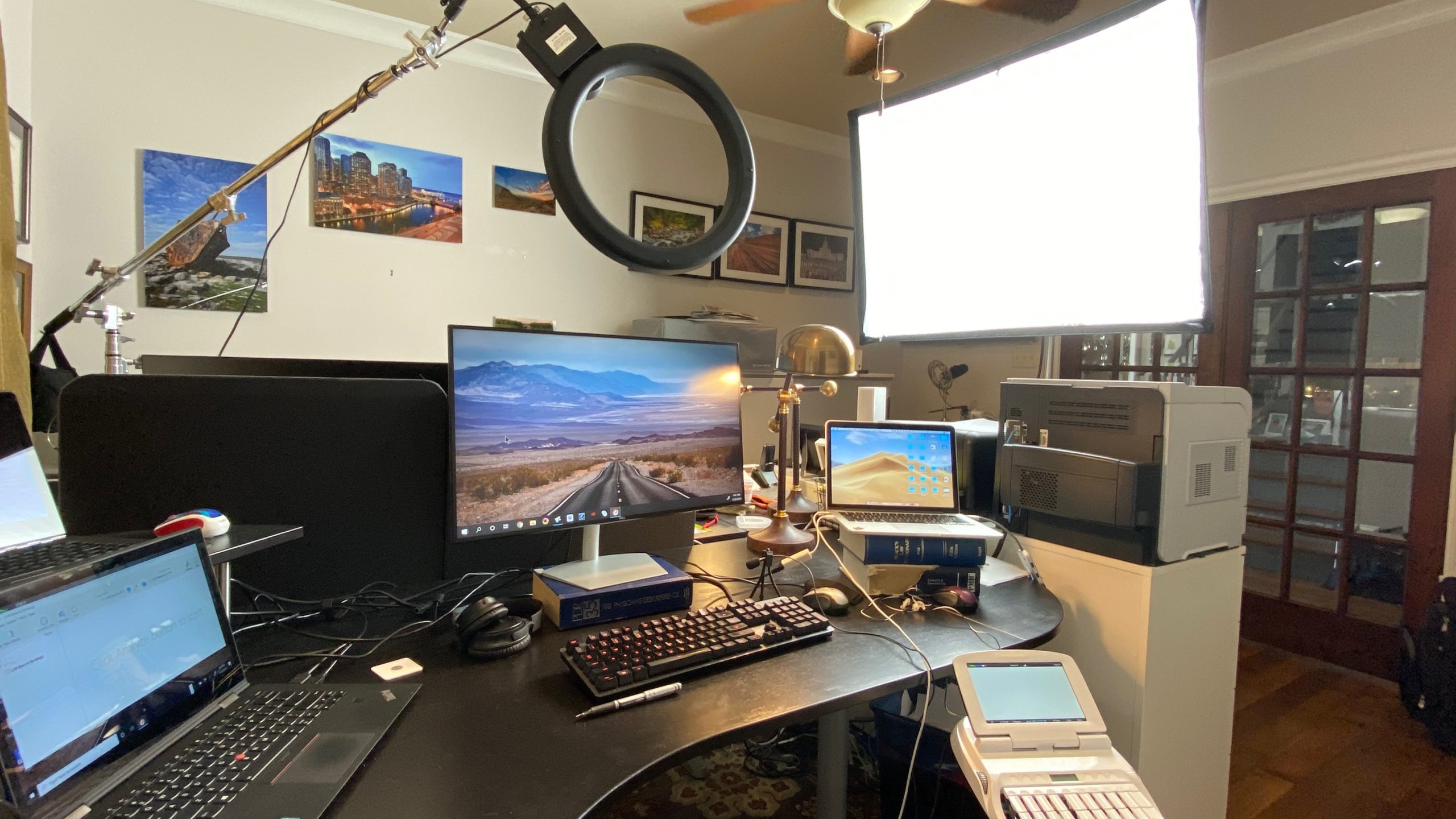
Last, but not least, is lighting! My setup includes a 3’x4’ soft box. It’s just something I have hanging around the house. Ha! I know not everyone is lucky enough to have a photographer spouse like me. I have the soft box setting directly in front of my computer for the best light and image during my web conferences. 

Even if you don’t have a soft box laying around the house like I do, you can still have great lighting for your remote deposition and use what you have right at home. If there is a window in your room, situate the laptop facing the window, if possible, for a very pleasing effect. Lighting is definitely my friend, and I want it to be yours too! Natural light is often the best and provides a soft glow to your skin. If the light source is to your back, your image will be dark and the other participants will not be able to see you much at all, as you will appear in silhouette. 

What to do if your room has no windows or the window is not situated in an ideal location? Play around with other lamps you have in your home. Remember to consider the light bulb hue as well. There are so many options out there. The color temperature of the light bulb can certainly affect your appearance. Play around and see what works best for you.

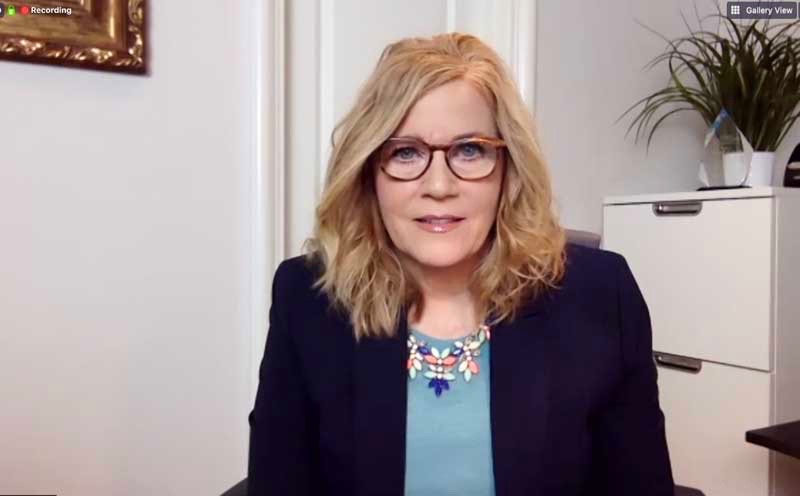
Here are some pics showing different lighting setups so that you can understand the difference lighting can make to your photo.


No ambient lighting, except computer screen
Desk lamp lighting with soft white light bulb
Soft box lighting

For an affordable lighting option, my husband recommends either a Neewer Dimmable bi-color 660 LED video light or the Neewer Ring Light Kit  if you want to be camera ready for your next remote deposition.

There you have it — my five tips for looking great for your next remote deposition. Happy Zooming, colleagues!

Filed Under: Lynette's Blog Tagged With: court reporters, remote depositions, videoconference, videographer, web conference, webcam, Zoom

How to Optimize Internet Connections for Remote Depositions

April 13, 2020 By Lynette Mueller Leave a Comment

optimize internet connectionsHeading into week four of the coronavirus quarantine and hoping my court reporter colleagues and legal professionals are up and running with remote depositions!

In case you missed these articles, click on the links below for more information.

Helpful how-to’s for remote depositions.

Tools for web conferencing.

Handling of exhibits for remote depositions.

Cord-cutter ~ a person who cancels or forgoes a cable television subscription or landline phone connection in favor of an alternative internet-based or wireless service.

If you’re a cord-cutter like me, reliance on cell service and/or internet connection speed is of utmost importance in keeping our livelihoods healthy and booking those remote jobs when you wish to utilize the cellphone for audio. That being said, my AT&T service is not great in my neighborhood at all. I’m lucky if I get two bars on my cellphone. That poor cell service isn’t stopping me, though, from being able to provide great court reporting services to my clients.

When you elect to call in to your remote depositions utilizing your cellphone (because the audio quality may be better than your laptop), ensure you go into your Settings and disable all incoming calls and notifications. If a Mac, iPad, or other tablet is being used, remember to disable incoming calls and notifications on those devices as well. Those pesky distractions can definitely be an annoyance for participants in the remote deposition.

For Android users, Android Central has this advice:

How to disable incoming calls

Disabling all incoming calls is easier than you might think. There’s no need to fuss with questionable third-party apps or sit on hold with your carrier to ask for manual call barring. In most cases, it’s as simple as tapping through a few menu screens.

  • Open the Phone app.
  • Tap the menu overflow button (three dots) in the upper righthand corner.
  • Tap Settings.
  • Tap Calls.
  • Within Call Settings, tap Call Barring.
  • Tap All Incoming (which should initially say “Disabled”).
  • Enter the call barring password. In most cases, this will be either 0000 or 1234.
  • Tap Turn On.

Once you’ve entered the correct call barring password, your phone will take a moment to process before showing “Enabled” under the All Incoming option, confirming you’ve successfully blocked incoming calls. If you don’t know your call barring password, don’t worry. It’s typically a simple string of numbers like 0000, 1234, or 1111, but if none of those work, ring up your carrier’s customer service line.

For iPhone users, Apple Support has this advice:

Set Do Not Disturb on iPhone

Ask Siri. Say something like: “Turn on Do Not Disturb,” or “Turn off Do Not Disturb.

  1. You can also open Control Center, then tap pastedGraphic.png to turn on Do Not Disturb.
    When Do Not Disturb is on, pastedGraphic.png appears in the status bar.
  2. To choose an ending time for Do Not Disturb, touch and hold pastedGraphic.png in Control Center, then choose an option, such as “For 1 hour” or “Until the end of this event.”
    You can also tap Schedule, turn on Scheduled, then set beginning and ending times.

I am a Mac user for my administrative side of the business, and I have a PC for my CAT software. If you have this same setup, CNet offers these instructions on how to quickly stop incoming calls from an iPhone ringing in on your other Apple devices.

Next, let’s talk about internet connections. Check with your internet service provider (ISP) to double-check what your current status is regarding your internet speed. speedtest.net is a great resource to immediately check your download and upload speed. My ISP is Comcast. According to speedtest.net, my download speed, at the time of writing this article, is 90.85 Mbps and my upload speed is 23.55 Mbps, which exceeds the minimum requirements for Zoom. Remember that the Zoom platform recommends the following for minimum bandwidth:

Bandwidth requirements

  • 800kbps/1.0Mbps (up/down) for high quality video.
  • For gallery view and/or 720p HD video: 1.5Mbps/1.5Mbps (up/down)
  • Receiving 1080p HD video requires 2.5mbps (up/down)
  • Sending 1080p HD video requires 3.0 Mbps (up/down)

As you know, remote web conference platforms are extremely dependent on fast internet speed. So it is crucial that every court reporter has the best and fastest service available that the budget allows in order to be successful with web conferences and to provide a great customer experience for their clients. Luckily, my home office is hardwired in addition to having WiFi. The benefit of being hardwired is that it offers high performance and faster speed than the wireless connection. Not every home has the luxury of having a hardwired connection and so WiFi is the way to go. 

Remember I mentioned I don’t have great AT&T service and I’m a cord-cutter? This is where my WiFi comes into play. When great cell service is not available, you may turn on WiFi calling. Be sure your internet service has a strong signal. Once you have enabled the WiFi calling and connected to your home network, the next step is to enable Airplane Mode. Trust me, this works! You’ll get a much better experience with these settings.

So even though I utilize WiFi calling on my iPhone, I still wasn’t getting the best connection with phone calls. Of course I had to look for a better solution! There were dead zones within my home. If I were to head upstairs, my WiFi signal was much improved. The problem with that is that my home office is downstairs. My husband and I tried the WiFi range extender without success. The answer to my dilemma? A mesh router. According to an article from Tom’s Guide in 2018: 

“Mesh routers are the latest technology upgrade for home Wi-Fi networks. Mesh networks have been used for years in large places where a secure network is critical, like military bases and businesses. (In such cases, the network is often isolated and not connected to the internet.) Now, residential wireless-internet users can optimize their home Wi-Fi with a form of mesh networking, too. If you have a large home — at least 3,000 square feet — or one with an unusual layout, more than two stories or interior brick walls, you probably regularly encounter Wi-Fi dead zones, and your setup could be a good candidate for a mesh-router system.”

One of my favorite tech resources is PCMag.com. They have this to say about mesh routers and range extenders:

Wireless Mesh System vs. Range Extenders: Which Is a Better Solution for Whole-Home Wi-Fi?

Wi-Fi systems range in price from around $130 for a single-node system to as high as $500 for a three-piece system like one of our Editors’ Choice picks, the Linksys Velop, which, in the 3-Pack iteration we tested, covers 6,000 square feet. In most cases, they’ll cost you more than you’d pay for a similarly powered router and range extender solution. But remember: Wi-Fi systems are all about ease of use. They’re a snap to set up and manage, offer whole-house coverage via a series of attractive nodes, and they provide seamless room-to-room roaming over a single network. If you want total control over your network and require the best possible throughput performance and connectivity options, stick with a traditional router solution. If you don’t want to deal with things like assigning radio bands and logging in to different networks as you move throughout your home, however, a Wi-Fi system makes sense.

The Linksys Velop is the mesh router that I utilize today — and it’s awesome! Basically, by using the best mesh WiFi routers, you’re able to cover a large space without compromising the connection or requiring multiple networks. In addition, setting up a mesh WiFi router is usually easy enough that you can do it without expert IT help. My husband set up ours in short order!

Here’s the article from PC Mag with their top picks for mesh routers.

Tom’s Guide also has a list of their top picks.

PC World’s top picks.

And here’s CNet’s top picks.

So with all this talk about hardwired, mesh routers, and range extenders, what if you just want to try to boost your current WiFi situation? There are some things you can do right now to speed up your WiFi internet connection.

  1. Consider data caps. Check with your ISP and/or your invoice to see if this is a limitation.
  2. Reset your router every month or so to refresh your internet connection. 
  3. Try repositioning your router, if possible. I didn’t have that option, which is the reason for my upgrade to the mesh router.
  4. Update your router’s firmware.
  5. Try to close tabs on your browser that are essential only. All the open media can slow down your connection.
  6. Clear your cache on your browser. As you visit websites and enter information, browsers collect information about you in the form of cookies. To get rid of the cookies and trackers, clear the cache on your browser.
  7. Check with your ISP and see if a higher speed plan is available, if it works with your budget.
  8. Check with other ISPs in town to see if they offer a better plan at an affordable price.

Court reporters know that we need to encourage our clients to book more remote depositions so that we can earn a living and so that the clients can keep their cases moving forward. Slow internet speeds can be physically painful to deal with every day. Hopefully, these tips will get you up to “speed” and get more remote deposition bookings on your calendar!

Filed Under: Lynette's Blog, Uncategorized Tagged With: android, court reporters, exhibits, internet, iPad, iPhone, mesh routers, remote depositions, telephone depositions, web conference, wifi

Handling of exhibits for remote depositions

March 30, 2020 By Lynette Mueller Leave a Comment

As we are now entering week three of self-quarantining due to COVID-19, I know our members are gearing up and learning how to handle remote depositions. Thanks to Keith Lemons, Sue Terry, and Debbie Dibble for stepping up and presenting an awesome webinar for our members at a moment’s notice! For those of you who missed the webinar, it will be available as an e-seminar coming soon. Check your inbox and social media for announcements for more upcoming webinars!

In addition, our Tech Committee has written a few articles about reasons to utilize web conferences, best practices, gadgets to help the conference run smoothly, and the pros and cons of their platforms of choice.

You can find the articles here:

Web conferencing article

How-to’s for remote depositions

So in this particular article, let’s talk about exhibit handling. There’s always advanced planning required when exhibits are introduced remotely. 

Challenges faced with exhibits in remote depositions:

  1. Passing of documents
  2. Annotating of documents
  3. Pointing the witness to a specific passage on a long document
  4. Managing voluminous documents

One of the easiest methods that most of my clients have utilized up to this point is either sending me the physical exhibits or by sending me a secure link where I can access them to be printed for the witness at the deposition. Some attorneys do ask that I not share the exhibits with either the witness or opposing counsel because they wish to preserve their legal and tactical strategies. I’ve adopted this policy on all of my remote depositions at this point.

If you do proceed with a deposition with physical exhibits in hand, the client that is attending remotely may ask the witness to share the document by holding it up with a steady hand and placing it in front of the webcam and/or the videographer’s camera.

While physical exhibits is one methodology to utilize for a web conference, there are several paid applications in the marketplace that can handle exhibit marking and sharing all online and in the cloud. A few come to mind: LiveLitigation, Agile, eDepoze, and TrialPad by Lit Software. Agile, eDepoze, and TrialPad are geared and marketed to attorneys for introduction of exhibits, managing the exhibits, and collaborating on the files. It’s good to be familiar with these products, as a potential new client may wish to utilize it during one of your scheduled depositions. All of these platforms offer robust solutions for remote depositions, many helpful video tutorials, and desktop and mobile apps. Some of them offer a free trial and live demonstrations if requested.

  • LiveLitigation
  • Agile
  • eDepoze
  • TrialPad

How does the court reporter get a copy of the exhibits when attorneys use the above applications? Simply ask the attorney to either email the exhibits or send them via a secure link.

Per eDepoze’s FAQs: “Anyone else can log in on their laptop or iPad as a guest for free and they will receive unstamped courtesy copies of each exhibit just as they do now.”

Per Agile’s FAQs: “All participants in the deposition receive an email with a link after the deposition is concluded that allows them to download PDFs of each exhibit. The download is secured by a PIN that is only shown to the approved deposition participants.”

Per LiveLitigation’s FAQs: “Files uploaded are shared with other members of your group. Group members can Preview and Exhibit, and can also Download or Save to ‘My Files’ from the MyCal portal.”

Remote Depositions With All Parties Appearing in Different Locations

Next, let’s talk about PDF-only unmarked exhibits that may be shared in Zoom or any other web conference application. Experienced attorneys are great at making their record when it comes to exhibits, especially in the scenario when attendance is remote. Their descriptions of the exhibits make it easy for the court reporter to go back in the transcript during edit to find each document in order to place an exhibit label on it. I utilize my Dymo and love it for in-person depositions and when I am with the witness. 

When we find ourselves in a totally remote deposition where all parties are in different locations and we are working with PDFs only, court reporters really don’t want to take the time to sticker the exhibits and then have to scan them. Why duplicate effort? Adobe Acrobat has a solution to this conundrum! E-Stickers. You can add a digital exhibit sticker directly to the PDFs with a click of a button. With the paid version of E-Stickers “All-In-One,” each sticker is customizable with a choice of ten colors, custom title, prefix, and the ability to set a starting number or letter.  If you don’t wish to purchase the custom program, there is a free version offered as well. The free version offers a white digital “Exhibit” E-sticker with the manual entry feature and is fully functional. 

Another paid option for stamping PDF documents is a solution called Final Exhibits. 

  • The Final Exhibits viewport displays the first page of every PDF document in your selected folder. 
  • Customize your electronic sticker (or page number) and drag it onto an exhibit in the viewport.  
  • Final Exhibits will place sequential stickers in the same relative position on all the loaded documents – automatically. 
  • Quickly scroll through and review every labeled exhibit.  Edit individual stickers.  
  • Move & Rotate them directly in the viewport, if they are covering up anything important.
  • Click Save and Final Exhibits automatically applies and flattens the stamps onto all the exhibits.

Here’s a link to a video showing how easy it is to stamp multiple exhibits at the click of a button:  Final Exhibits video

For those reporters who have Adobe Acrobat Reader DC only and want an unpaid option for marking exhibits, you can still stamp the documents; but it will take a little more effort. First, open the doc; then Fill & Sign; select Add Text and complete all the information you wish to have on the exhibit “stamp.” Next, grab that circle icon and drag it to your desired height and width; then, drag it on top of the text. When you’re finished, click Save.

So when stamping your PDF documents or if a witness annotates a document during the deposition, you need to ensure that the file is “flattened” for the final transcript. There is no need to flatten the document during the deposition, as all exhibits marked during the proceeding are working copies. Flattening the document reduces the file size and also merges all the layers in the image.  Essentially, it combines all the layers into a single background layer so that the file cannot be annotated or edited anymore.  Please check with your tool of choice for flattening options. Some of the tools have flattening built into the program.

My Method of Choice for Marking of Exhibits During Remote Depositions When All Parties Appear in Different Locations

Over a decade ago I was handling remote depositions. I started out using Skype and have evolved to doing most of the remote depositions by Zoom today. As I’ve mentioned before, Zoom has an awesome advantage in that I can pay as I need the service. No depositions coming up next month where clients need to attend remotely? No problem. Simply suspend your account until the next time you need the service! The basic free account of Zoom allows up to 100 participants.

I am recommending to my attorney clients that we share exhibits with the box.com platform. When trying to share exhibits within Zoom using Dropbox or Google Drive, there are multiple clicks that need to be made in order for the other participants to either download or screen share the exhibit. When sharing documents via box.com, it’s as simple as clicking the link and the exhibit opens immediately! 

So, I will request that the attorney send me ahead of time all potential documents that may be shown to the witness during the deposition. Then, I will create a specific shared folder for the exhibits and send an invitation to the client. That way, he or she can access them on the fly during the proceedings. Be sure to add the client as a collaborator and enable the share link on all exhibits when creating your shared folder. The attorney should sign up a free account on box.com, if their firm doesn’t use this cloud service.

Sharing a link in the Zoom Chat box is a preferable method to sending the exhibit via the File option within the platform. Some of the reasons for sharing links rather than uploading the actual document or screen sharing include:

  1. With a screen share, it may be more difficult for the attorney to direct the witness to a specific passage.
  2. If uploading the file directly, it may be that the file size is too large to receive or slow to receive. This could be time-intensive and not a good use of the clients’ time.
  3. Uploading documents directly with the File option can eat up bandwidth that you should save for the video portion of Zoom.
  4. If annotations need to be made, it is a relatively easy process to do and all participants can see where the notations are being placed. The annotations may be saved in a folder on the local computer and shared later.

I’ve found that it is best to have the attorneys (not the court reporter) handle the marking of the exhibits during the proceedings. When the attorney is sharing the exhibit via the Chat, advise him ahead of time how to share the documents. Example:  Exhibit 1 – (link of the exhibit).  They know what exhibits they are looking for because of the file name associated with the exhibit — much easier and faster using this methodology.

Be sure to have the option selected in your Zoom account settings to automatically save the Chat. That way, it’s an easy matter to go through the Chat during transcript production and check the numbering of exhibits. Then, go ahead and place your exhibit stamp with your tool of choice!

Whew! That’s a lot of information about some of the ways to handle exhibits during remote depositions. I’d love to hear more where you have landed on marking of exhibits. Remember, we are all social distancing together so that things can get better faster and it’s important that we share our knowledge. 

“I will be seeing you soon and things will be better” ~ Unknown

Filed Under: Lynette's Blog Tagged With: court reporters, exhibits, gadgets, PDF, remote depositions, technology, telephone depositions, videoconference, web conference, Zoom

Friday’s Fantastic Four #2

May 24, 2019 By Lynette Mueller Leave a Comment

Happy Friday!

Here is your weekly snippet of what I’m loving, learning, following, buying, and reading.

  1. “I always did something I was a little not ready to do. I think that’s how you grow. When there’s that moment of ‘Wow, I’m not really sure I can do this,’ and you push through those moments, that’s when you have a breakthrough” ~ Marissa Mayer

With the Memorial Day Weekend upon us, I thought it would be great to share my favorite app for enhancing my iPhone photos! Everyone wants to share a little part of themselves to share with their friends and family, so this is a very intuitive app to use for that purpose. 

2. Snapseed

Snapseed is a free professional photo editor app created by Google and I’ve been using it almost exclusively for at least five years. Here are the key features of the app:

• 29 Tools and Filters, including: Healing, Brush, Structure, HDR, Perspective (see list below)

• Opens JPG and RAW files

• Save your personal looks and apply them to new photos later

• Selective filter brush

• All styles can be tweaked with fine, precise control

• “Insights” feature with tips and tricks about Snapseed and general photography

Here’s a pic I took on my iPhone X of my little corgi, so you can see what great results you can achieve with this app.

Ruby Rey

3.  I use several social media platforms and utilize each for a different purpose. This blog is where I will highlight who court reporters should consider following too.

In keeping with the vacation and travel mode for the weekend, my pick for this Friday’s Follow is Leah Willersdorf on Instagram. Leah is a realtime stenographer in Europe and international freelancer. You can find her on Instagram as steno_princess. Her pics from around the globe highlight how our amazing profession is so versatile and exciting. Imagine being able to do what you love and see some amazing history and beautiful scenes at the same time. She is so upbeat and encouraging to other court reporters as well. Definitely follow her now!

4. This block will be devoted to one of the most engaging Facebook, Twitter, LinkedIn, or Instagram posts as determined by those individuals who follow Omega Reporting.

This week’s most engaging post on Omega Reporting’s Facebook was about educating us about the difference between SSD and HDD for your new laptop buying decision. What category do you fall in? I’m a speed demon!

The Choice Is Yours: SSD or HDD?

Until just a few years ago, PC buyers had little choice about what kind of storage to get in a laptop or desktop PC. If you bought an ultraportable anytime in the last few years, you very likely got a solid-state drive (SSD) as the primary boot drive. Larger laptops are increasingly moving to SSD boot drives, too, while budget machines still tend to favor hard disk drives (HDDs). The boot drives in desktop PCs, meanwhile, are a mishmosh of SSDs or HDDs; in some cases, a system comes with both, with the SSD as the boot drive and the HDD as a bigger-capacity storage supplement.

You can read the full story here.

—————————————————

As always, please post your comments about any of the material posted here and let me know what kind of content you’d be most interested in. If you like the content posted here, I’d love it if you’d share with other colleagues and encourage them to sign up!

Cheers!

Filed Under: Lynette's Blog Tagged With: court reporters

Friday’s Fantastic Four

May 17, 2019 By Lynette Mueller Leave a Comment

Happy Friday!

Here is your weekly snippet of what I’m loving, learning, following, buying, and reading.

  1. “Never stop challenging yourself. The day you do, you’re falling behind.”


Motivational quotes are important for everyone — and especially for court reporters. They can be a way to relieve stressors experienced daily and can be a tool to help stay focused on the job at hand.

2. Motivation Quotes – Daily Quote

Motivation contains a set of inspirational thoughts and sayings that will urge you to take daily action throughout the day. 

These quotes will guide and inspire you for any occasion! Set many daily reminders for yourself and share the uplifting quote of the day with your friends and family or use the image for Instagram or as a wallpaper. 

Motivation contains hundreds of quotes with deep and rich meanings, with a continuous stream of new ones added daily!

  • Read through hundreds of quotes
  • Find motivational books
  • Save or share your quotes
  • Set motivational reminders throughout the day
  • Filter quotes by category

3. There are several factors when considering who to follow on your social media channels.

  • Incentives
  • Content
  • Influencers
  • Advice

I use several social media platforms and utilize each for a different purpose. This blog is where I will highlight who court reporters should consider following too.

My pick for this Friday’s Follow is the National Court Reporters Association on all of their social media platforms. It is especially gratifying for me to share this follow, as it is Celebrate Certification Month!

NCRA has designated May as Celebrate Certification Month. The month-long campaign is a way for its members to show pride in the certifications they have earned, are working to earn, or are intending to earn.

NCRA is the premier organization in the court reporting arena and shares the most up-to-date and technology-related information available! Their social media platforms include the following:

  • Instagram
  • Twitter
  • Website
  • Facebook 
  • TheJCR.com

Click here for a great article on how you can keep informed about NCRA and the awesome information they share.

4. This block will be devoted to one of the most engaging Facebook, Twitter, LinkedIn, or Instagram posts as determined by those individuals who follow Omega Reporting.

This week’s post is, again, dedicated to Celebrate Certification Month! 

I am so very proud of two court reporter colleagues from Memphis on earning their RDR certifications — Lisa Mayo and Candace Covey. Their story of how they encouraged each other and studied together to earn this most prestigious credential is one that every professional should read.

Click here for the full story.

As always, please post your comments about any of the material posted here and let me know what kind of content you’d be most interested in. If you like the content posted here, I’d love it if you’d share with other colleagues and encourage them to sign up!

Cheers!

Filed Under: Lynette's Blog Tagged With: apps, court reporters, gadgets, technology

  • « Previous Page
  • 1
  • 2
  • 3
  • 4
  • 5
  • …
  • 10
  • Next Page »

Schedule Now

Phone: 901.827.8671
E: Info@OmegaReporting.com

Contact Us

T: 901.827.8671

E: Info@OmegaReporting.com

Conference Facilities:
6465 North Quail Hollow Road
Suite 200
Memphis, TN 38120

Conference Room Complimentary
(with transcript order)

About Us

The Omega Difference - Why Our Clients Love Us The Ultimate in Professional Reporting . . . The need for speed and accuracy is great in today's ever-changing world of technology.  Omega Reporting is here and available to help our clients with their court reporting and transcription needs.  Our team strives to provide the ultimate experience for each of our clients.  The Omega Difference and What … READ MORE

Connect With Us

  • Email
  • Facebook
  • Google+
  • Instagram
  • LinkedIn
  • Pinterest
  • RSS
  • Twitter
  • YouTube

Schedule Now

Copyright © 2026; OMEGA REPORTING, SITE DESIGNED BY LYNETTE MUELLER