Omega Reporting

Omega Reporting | Memphis Court Reporters

Schedule Now

Phone: 901.827.8671
info@omegareporting.com


  • Home
  • About Us
    • The Omega Difference
    • Client Feedback
    • About Lynette Mueller
      • Lynette Mueller Biography
      • Lynette Mueller Published Articles
      • Lynette Mueller Named as Fellow
    • Professional Memberships
    • Memphis Conference Facilities
    • Our Code of Ethics
    • Ethics and Gift Giving
    • Community News
  • Client Center
    • Client Center
    • Transcript Order Form
    • Online Transcript Repository
  • Client Services
    • Client Services
    • Realtime Court Reporters
    • Green Transcripts
    • Videography
    • Remote Depositions
      • Web Conference Depositions
      • Coronavirus: How we can help attorneys
      • 7 Remote Deposition Tips for Attorneys
      • Checklist for Remote Depositions
      • Handling of Exhibits for Remote Depositions
    • Videoconferencing
  • Contact Us
  • Lynette’s Blog
  • Reporters
    • Reporter Job Information and Billing

How to Optimize Internet Connections for Remote Depositions

April 13, 2020 By Lynette Mueller Leave a Comment

optimize internet connectionsHeading into week four of the coronavirus quarantine and hoping my court reporter colleagues and legal professionals are up and running with remote depositions!

In case you missed these articles, click on the links below for more information.

Helpful how-to’s for remote depositions.

Tools for web conferencing.

Handling of exhibits for remote depositions.

Cord-cutter ~ a person who cancels or forgoes a cable television subscription or landline phone connection in favor of an alternative internet-based or wireless service.

If you’re a cord-cutter like me, reliance on cell service and/or internet connection speed is of utmost importance in keeping our livelihoods healthy and booking those remote jobs when you wish to utilize the cellphone for audio. That being said, my AT&T service is not great in my neighborhood at all. I’m lucky if I get two bars on my cellphone. That poor cell service isn’t stopping me, though, from being able to provide great court reporting services to my clients.

When you elect to call in to your remote depositions utilizing your cellphone (because the audio quality may be better than your laptop), ensure you go into your Settings and disable all incoming calls and notifications. If a Mac, iPad, or other tablet is being used, remember to disable incoming calls and notifications on those devices as well. Those pesky distractions can definitely be an annoyance for participants in the remote deposition.

For Android users, Android Central has this advice:

How to disable incoming calls

Disabling all incoming calls is easier than you might think. There’s no need to fuss with questionable third-party apps or sit on hold with your carrier to ask for manual call barring. In most cases, it’s as simple as tapping through a few menu screens.

  • Open the Phone app.
  • Tap the menu overflow button (three dots) in the upper righthand corner.
  • Tap Settings.
  • Tap Calls.
  • Within Call Settings, tap Call Barring.
  • Tap All Incoming (which should initially say “Disabled”).
  • Enter the call barring password. In most cases, this will be either 0000 or 1234.
  • Tap Turn On.

Once you’ve entered the correct call barring password, your phone will take a moment to process before showing “Enabled” under the All Incoming option, confirming you’ve successfully blocked incoming calls. If you don’t know your call barring password, don’t worry. It’s typically a simple string of numbers like 0000, 1234, or 1111, but if none of those work, ring up your carrier’s customer service line.

For iPhone users, Apple Support has this advice:

Set Do Not Disturb on iPhone

Ask Siri. Say something like: “Turn on Do Not Disturb,” or “Turn off Do Not Disturb.

  1. You can also open Control Center, then tap pastedGraphic.png to turn on Do Not Disturb.
    When Do Not Disturb is on, pastedGraphic.png appears in the status bar.
  2. To choose an ending time for Do Not Disturb, touch and hold pastedGraphic.png in Control Center, then choose an option, such as “For 1 hour” or “Until the end of this event.”
    You can also tap Schedule, turn on Scheduled, then set beginning and ending times.

I am a Mac user for my administrative side of the business, and I have a PC for my CAT software. If you have this same setup, CNet offers these instructions on how to quickly stop incoming calls from an iPhone ringing in on your other Apple devices.

Next, let’s talk about internet connections. Check with your internet service provider (ISP) to double-check what your current status is regarding your internet speed. speedtest.net is a great resource to immediately check your download and upload speed. My ISP is Comcast. According to speedtest.net, my download speed, at the time of writing this article, is 90.85 Mbps and my upload speed is 23.55 Mbps, which exceeds the minimum requirements for Zoom. Remember that the Zoom platform recommends the following for minimum bandwidth:

Bandwidth requirements

  • 800kbps/1.0Mbps (up/down) for high quality video.
  • For gallery view and/or 720p HD video: 1.5Mbps/1.5Mbps (up/down)
  • Receiving 1080p HD video requires 2.5mbps (up/down)
  • Sending 1080p HD video requires 3.0 Mbps (up/down)

As you know, remote web conference platforms are extremely dependent on fast internet speed. So it is crucial that every court reporter has the best and fastest service available that the budget allows in order to be successful with web conferences and to provide a great customer experience for their clients. Luckily, my home office is hardwired in addition to having WiFi. The benefit of being hardwired is that it offers high performance and faster speed than the wireless connection. Not every home has the luxury of having a hardwired connection and so WiFi is the way to go. 

Remember I mentioned I don’t have great AT&T service and I’m a cord-cutter? This is where my WiFi comes into play. When great cell service is not available, you may turn on WiFi calling. Be sure your internet service has a strong signal. Once you have enabled the WiFi calling and connected to your home network, the next step is to enable Airplane Mode. Trust me, this works! You’ll get a much better experience with these settings.

So even though I utilize WiFi calling on my iPhone, I still wasn’t getting the best connection with phone calls. Of course I had to look for a better solution! There were dead zones within my home. If I were to head upstairs, my WiFi signal was much improved. The problem with that is that my home office is downstairs. My husband and I tried the WiFi range extender without success. The answer to my dilemma? A mesh router. According to an article from Tom’s Guide in 2018: 

“Mesh routers are the latest technology upgrade for home Wi-Fi networks. Mesh networks have been used for years in large places where a secure network is critical, like military bases and businesses. (In such cases, the network is often isolated and not connected to the internet.) Now, residential wireless-internet users can optimize their home Wi-Fi with a form of mesh networking, too. If you have a large home — at least 3,000 square feet — or one with an unusual layout, more than two stories or interior brick walls, you probably regularly encounter Wi-Fi dead zones, and your setup could be a good candidate for a mesh-router system.”

One of my favorite tech resources is PCMag.com. They have this to say about mesh routers and range extenders:

Wireless Mesh System vs. Range Extenders: Which Is a Better Solution for Whole-Home Wi-Fi?

Wi-Fi systems range in price from around $130 for a single-node system to as high as $500 for a three-piece system like one of our Editors’ Choice picks, the Linksys Velop, which, in the 3-Pack iteration we tested, covers 6,000 square feet. In most cases, they’ll cost you more than you’d pay for a similarly powered router and range extender solution. But remember: Wi-Fi systems are all about ease of use. They’re a snap to set up and manage, offer whole-house coverage via a series of attractive nodes, and they provide seamless room-to-room roaming over a single network. If you want total control over your network and require the best possible throughput performance and connectivity options, stick with a traditional router solution. If you don’t want to deal with things like assigning radio bands and logging in to different networks as you move throughout your home, however, a Wi-Fi system makes sense.

The Linksys Velop is the mesh router that I utilize today — and it’s awesome! Basically, by using the best mesh WiFi routers, you’re able to cover a large space without compromising the connection or requiring multiple networks. In addition, setting up a mesh WiFi router is usually easy enough that you can do it without expert IT help. My husband set up ours in short order!

Here’s the article from PC Mag with their top picks for mesh routers.

Tom’s Guide also has a list of their top picks.

PC World’s top picks.

And here’s CNet’s top picks.

So with all this talk about hardwired, mesh routers, and range extenders, what if you just want to try to boost your current WiFi situation? There are some things you can do right now to speed up your WiFi internet connection.

  1. Consider data caps. Check with your ISP and/or your invoice to see if this is a limitation.
  2. Reset your router every month or so to refresh your internet connection. 
  3. Try repositioning your router, if possible. I didn’t have that option, which is the reason for my upgrade to the mesh router.
  4. Update your router’s firmware.
  5. Try to close tabs on your browser that are essential only. All the open media can slow down your connection.
  6. Clear your cache on your browser. As you visit websites and enter information, browsers collect information about you in the form of cookies. To get rid of the cookies and trackers, clear the cache on your browser.
  7. Check with your ISP and see if a higher speed plan is available, if it works with your budget.
  8. Check with other ISPs in town to see if they offer a better plan at an affordable price.

Court reporters know that we need to encourage our clients to book more remote depositions so that we can earn a living and so that the clients can keep their cases moving forward. Slow internet speeds can be physically painful to deal with every day. Hopefully, these tips will get you up to “speed” and get more remote deposition bookings on your calendar!
Filed Under: Lynette's Blog, Uncategorized Tagged With: android, court reporters, exhibits, internet, iPad, iPhone, mesh routers, remote depositions, telephone depositions, web conference, wifi

7 Remote Deposition Tips for Attorneys

March 25, 2020 By Lynette Mueller Leave a Comment

During these unprecedented times and self-distancing we are experiencing today, I thought I’d reach out to my valued clients with another update on how Omega Reporting and myself especially can help attorneys continue the important work of taking depositions.

We have been assisting mostly out-of-state clients with their remote videoconference depositions for over a decade. Omega prides itself on keeping up with evolving technology to meet our client’s needs. I have been Chair of the National Court Reporters Association’s Technology Committee for the past three years and a member prior to that. Technology is my passion!

For litigators, there is still important work that needs to be done for your very important clients. So let me help you with that! I have the knowledge, the tools, and skill to help you navigate this new normal in the legal setting. While it is an adjustment to integrate and implement remote depositions into your workflow, the benefits are many.

  1. Eliminates costly airline travel and hotel charges
  2. Cost-effective when your client is budget conscious
  3. Viable option when you cannot meet in person because of other commitments 
  4. Allows more time on deposition preparation
  5. Gives a face-to-face experience with potential witnesses

So, let’s dive into the tips to get you started on the path to remote videoconferencing.

  1. Equipment.  You will need a laptop with a webcam and a telephone connection. An iPad and smartphone may be utilized as well. Audio transmission problems may be a concern when using your laptop. If testing reveals problems with the audio, an easy solution is to use the telephone number provided. When connecting to the conference with your telephone for the audio, remember to mute the speakers on the laptop. You don’t want to get annoying feedback.
  2. Internet Connections. More often in today’s modern offices, you may not have the opportunity to plug in directly to the internet with hardwire. You will need to connect to the internet via WiFi. You can test the speed of your connection by going to speedtest.net. You will need a fairly robust connection. Testing with me will reveal whether your system will be adequate.
  3. Book a test call. Be sure to schedule a test call with me. I am happy to walk through the process with the witness as well. Most witnesses are fairly savvy with tools like FaceTime, but it’s always good to get them up to speed and feel comfortable as well. The test call will provide the time necessary to address any potential problems that may arise.
  4. Location. Find a quiet location within your home to attend the remote deposition. Position the laptop directly in front of you and be sure to face a window if you have one in your room. If your back is toward the window, the backlighting prevents a good image for the other participants.
  5. Exhibits. There are several ways to handle the viewing of exhibits. Some options include: emailing the exhibits to all participants, using a screen share, or other built-in features of the application. We will consult with you prior to your deposition and decide on the best method for your needs.
  6. Deposition Etiquette. Of course, my clients are always mindful of making a great record. I would be remiss, however, if I didn’t mention that etiquette during remote proceedings is of utmost importance. You and I both want to ensure that every word is captured by the court reporter. Things to consider are: speak clearly and at a moderate pace; when reading from a document, enunciate your words; speak objections out loud where all participants can hear them; and let the witness or opposing counsel finish speaking before you respond.
  7. Arrive early. Our remote deposition meetings are launched at least 15 minutes prior to the start time. It is a good practice to arrive early to take care of any difficulties that may happen the day of the proceeding. I am very mindful of your time and want to ensure we can have an on-time start!

BONUS TIP!

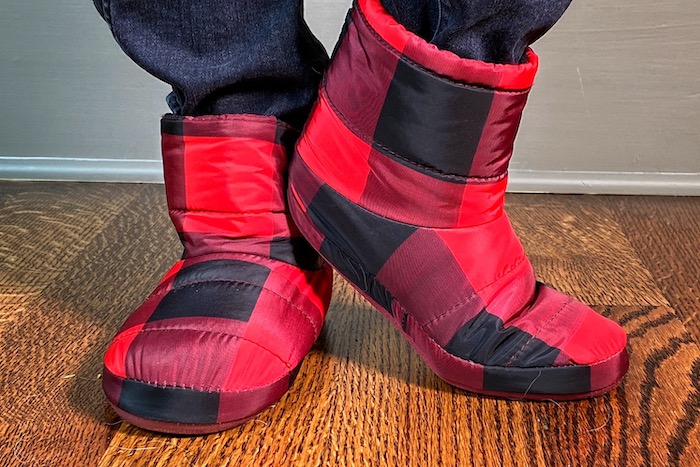
No one will judge you if you wear your bunny slippers.

So there you have it — the top seven tips for remote depositions for attorneys. I look forward to hearing from you soon!

901.827.8671

lynette@omegareporting.com

SCHEDULE NOW

Filed Under: Lynette's Blog Tagged With: deposition, exhibits, iPad, laptop, remote depositions, smartphone, technology, videoconference, webcam

Remote Depositions, Part 2

March 15, 2020 By Lynette Mueller Leave a Comment

altI was supposed to be at the Arkansas Court Reporters Association Convention the first weekend in April delivering a seminar on gadgets and apps. Instead of preparing my PowerPoint for the presentation, I’m settling into a writing session by my fireplace. Of course, that is a result of the coronavirus cancellations. This pandemic is very real and we all need to be extra vigilant for our health and the health of our colleagues and loved ones.

See NCRA President Max Curry’s message here regarding coronavirus.

First and foremost, I am personally trying to keep everything in perspective. These days ahead for us all are uncharted waters and will be challenging. We court reporters are forces to be reckoned with. Some adjectives that come to mind about my reporter friends and colleagues: optimistic, curious, resourceful and, most importantly, resilient! This pandemic isn’t our first challenge we’ve faced and certainly won’t be our last.

Over the next few weeks, we all will be experiencing our “new normal.” We cannot control the cancellations of depositions and hearings; all we can do is respond to it.

The number-one question colleagues have asked me: “What alternative solutions can I offer to my clients?” Others may wonder, “How can we leverage the additional time to improve my skills and my work life?”

As Chair of the NCRA Tech Committee, I tasked our members last fall to publish an article about their tools of choice for web conferencing a.k.a. remote depositions. You may read that article online here.

In addition to all the points enumerated in the web conference article, I will mention some additional options/tools to consider for remote depositions.

  1. Know your notary laws in your specific state regarding witness oaths before you accept a remote assignment.
  2. Consider using an external speaker for telephonic or web conference proceedings. I purchased a Beats Pill portable speaker several years ago and it works beautifully! There are many products available. Be sure to read reviews online and get recommendations from fellow court reporters before making your final purchase.
  3. Dana Hayden, CCR, RMR, CRR, CRC, recommends using a great set of headphones/earbuds for your telephonic depositions. My headphones of choice? Bose noise-cancelling over-the-ear headphones. You can check out Bose here.

In addition, Dana advises to utilize a splitter. A speaker and headphone splitter allows you to connect two headsets or speakers to one jack. Here are some specific products she recommends.

Here’s an example of a splitter:

Then, you plug an auxiliary cable from one of the jacks into your computer microphone jack, such as this:

If you don’t have a microphone jack on your computer, use another setup such as this USB microphone that has a headphone and a microphone jack.

Last, plug the auxiliary cable from your cell to the microphone jack of the USB sound card and plug in your headphones to the headphone jack of the USB sound card.

4. Because so many people and court reporters around the country have cut the cord, you can still be successful offering your services for remote depositions and proceedings if you don’t have a landline. You may use your cellphone as a viable option, if you have great cell service.

When great cell service is not available, you may turn on WiFi calling. Be sure your internet service has a strong signal. Once you have enabled the WiFi calling and connected to your home network, the next step is to enable Airplane Mode. Trust me, this works! You’ll get a much better experience with these settings. Also remember to disable incoming text messages and incoming calls. You don’t want those pesky distractions during important testimony.

5. Handling of exhibits remotely can go smoothly if you educate your clients. By far, the most common method when I work with my remote clients is that they will email or send a secure link to exhibits requesting that I print and have them available for the witness. Easy; right? There are other tools and apps available to counsel for handling of exhibits, but that’s a topic for another article or upcoming webinar coming soon.

6. Should you clean your smartphone and iPads? Everyone knows the smartphone is jam-packed with germs. If you choose to clean your device, check out this article from the Wall Street Journal. The author mentioned the following: 

“My phone is the least of my concerns,” says Alex Berezow, a microbiologist and vice president at the American Council on Science and Health. “Worry about touching door handles that thousands of other people touch.”

7. Here’s a great blog post from Cindi Lynch of Stenograph about tools for working during COVID-19.

Finally, just a few words about how to take advantage of our social distancing.

  1. Ensure you have a well-organized and dedicated workspace at home, if you don’t already have one. Productivity is paramount here. Those transcript backlogs won’t take care of themselves 🙂
  2. Continue to maintain your working hours routine. Sure, the cancellations have already begun; but there may be a pop-up call that comes your way. You don’t want to miss out on any potential work.
  3. Consider dressing for work. Yes, pajamas and bunny slippers seem like a logical and comfy choice; but, again, it’s important to maintain your routine.
  4. Another option for our downtime or social distancing is to take advantage of online CEU opportunities. NCRA has a plethora of webinars and e-seminars — earn those CEUs in the comfort of your home! This is a great time to take care of those learning obligations. This way, when the pandemic normalizes, you will be ready to go full-throttle work mode when the bookings return.
  5. Dictionary maintenance and speedbuilding should be top of mind and useful endeavors to embark upon. Hone those skills and stay high-speed ready!
  6. Last, but not least, join an NCRA committee. Volunteering your expertise can impact and improve our profession. We need you!

Remember, court reporters: We should keep in mind that in order to be effective and stay relevant, we must keep abreast of technology, embrace it, and never be skeptical of the newest innovations.

Filed Under: Lynette's Blog, Uncategorized Tagged With: gadgets, headphones, iPad, iPhone, remote depositions, smartphone, technology, telephone depositions, videoconference, web conference

Top Gadgets of 2018 for Court Reporters

December 2, 2018 By Lynette Mueller Leave a Comment

The holidays are upon us! These awesome must-have gadgets may be just what you’re looking for this year for your favorite court reporter or legal professional. These are my latest and greatest picks this year and just a click away for that favorite person on your list! Whether you’re on the naughty list or the nice list, remember to pick up a little something for yourself while you’re at it.

Some of the following made my list last year, but they’re just so darn awesome that they landed on the list again this year.  So, hold on for “deer” life as I “present” to you my favorite gadgets of 2018.  I hope “yule” love them as much as I do.  Enjoy!

  1. Automatic Pro Connected Car Adapter: This handy gadget has realtime location data about who’s driving your car.  I’ve been using this device for over a year now and am absolutely loving it!  I am using an app called IFTTT to automatically generate a Google spreadsheet to keep track of my work miles. No more mileage logs for me where I have to handwrite all the data.  This adapter plugs into almost any car to provide unlimited monitoring with zero fees.  You may even connect your car to your Echo, your smart thermostat, or any other part of your digital life.  This product works only in the United States.
  2. DYMO LabelWriter:  This labeler is my all-time favorite gadget.  Just upload your company logo, add your contact information, and print a professional-looking label for every transcript that heads out the door.  My labeler is connected to a dedicated computer.  But I have no worries about keeping my contacts up to date, because I utilize Apple’s iCloud.  When I effect a change or update in my address book on one computer, it then syncs on all computers, so my contacts are always up to date and available no matter which computer or device I happen to be using.  I also have created a customized exhibit sticker with my logo.  No more worrying about ordering exhibit stickers because I create them on-the-go.  The product features of the DYMO labeler are many: create and print address, shipping, file, folder, and barcode labels; print USPS approved DYMO stamps postage directly from your desktop, uses thermal printing technology — no expensive ink or toner needed.
  3. Tile: I’ve been using the Tile for a few years now to keep track of my most important items. Think your writer, wallet, keys — you get the idea. Quickly find items that you seem to always misplace with Tile.  I have given these as gifts before, and they’ve been a huge hit!  Can’t find your car keys?  Not sure where you placed your phone?  Or what if my equipment gets stolen?  Quickly find your lost items using Tile’s Bluetooth tracking device.  If your Tile is within the 100-foot Bluetooth range, it will play a loud tune until you find it. Keep the app running in the background, and Tile will automatically remember the last time and place you last had your item so you know where to start looking.  Tile is available for both Android and Apple devices! The New Pro & Mate now come with replaceable batteries.
  4. Peerless TrackR Quartz Blue Ballpoint Pen:  This gadget is on my list this year. I think it would be a great addition to my gadget collection. Please tell Santa this is a must-have! The Cross Peerless TrackR was designed for those who want to enjoy the luxury of a Cross pen without the worry of it getting lost, left behind, or stolen. Within it is a tracking device that lets you keep tabs on your pen’s whereabouts through a suite of tracking features. It also comes with a lifetime mechanical guarantee!
  5. Anker 10W Wireless Charger, Qi-Certified Wireless Charging Pad: This is one of the best gadgets ever! No more cords for me when I need to charge my iPhone X. Fast charge mode enables wireless charging up to two times faster. (Metal attachments or credit cards will interfere with charging.) Some of its unique features are as follows: LED indicators, non-slip pad, temperature control, surge protection, and more!
  6. iRobot Roomba 780:  Be productive at home and do other things you’d rather be doing than vacuuming! We fondly call our Roomba “Alice,” like the housekeeper from The Brady Bunch. Now if only we had a real Alice! The features of the Roomba: iAdapt multi-room navigation uses a full suite of sensors to navigate and adapt to your changing home; room-to-room cleaning with the included Virtual Wall Lighthouse beacons; three-stage cleaning system agitates, brushes, and suctions floors; conveniently scheduled up to seven times per week or just press Clean on the robot; automatically docks and recharges.
  7. AirFly: Wish you could listen to in-flight TV with your AirPods? Want to hear the gym cardio machine’s TV audio with your wireless headphones? Now you can, thanks to AirFly – a tiny device that connects wireless headphones to wired-audio jacks on planes, in fitness center, and anywhere else wired headphones were previously required. Just pair your wireless headphones with AirFly, plug it into the headphone jack, and you’re ready. It’s just that easy! AirFly stays charged for eight hours and includes a USB charging cable and travel pouch. The built-in battery lasts up to eight hours and recharges via USB.
  8. Apple AirPods: I love to do away with cords when I can. The Apple AirPods made it into my gadget collection this past summer. I was looking for a good option to monitor live audio during a job without a cord hanging from my ear. I used the AirFly to connect to my writer, which it did fine. Unfortunately, at this time they are unusable for this purpose because of audio feedback.  That being said, the AirPods are an amazing product and hopefully one day the technology can work for monitoring of audio during the deposition. These earbuds can be used for when I want to edit over the lunch hour or on breaks and I wish to spot-check my audio.  They are slim and quite unobtrusive. No one can even tell I have them in! They can be used with all your devices. After a one-tap setup, the AirPods are automatically on and always connected. You will get up to five hours of listening time on one charge.
  9. HGM-2 Microphone: This handy little microphone is packed with lots of features and has extreme pickup range and quality in addition to a built-in battery tester. The court reporter who has this mic can be assured you will have a worry-free day of crystal clear audio.  The HGM-2 utilizes a high-power battery that lasts 600 hours and allows the microphone to actually track voices up to 75 feet away while filtering out background noise. I use this microphone attached to my Luminex so that I can monitor audio live for those low-talking witnesses and attorneys!
  10. Amazon Echo Dot: I received the Echo Dot last year. It truly has a wide variety of uses and can be used throughout your office or home. Echo Dot is a hands-free, voice-controlled device that uses Alexa to play music, control smart home devices, make calls, send and receive messages, provide information, read the news, set alarms, read audiobooks from Audible, control Amazon Video on Fire TV, and more. When editing my transcripts, I ask Alexa to verify spellings for me so that I don’t have to take my hands off the keyboard; thus, making me much more productive. If a court reporter can keep their hands on the keyboard, it saves time and effort for sure. Other uses for the Echo Dot are as follows: Connects to speakers or headphones through Bluetooth or 3.5 mm stereo cable to play music from Amazon Music, Spotify, Pandora, iHeartRadio, and TuneIn. Apple Music is coming mid-December! Play music simultaneously across Echo devices and speakers connected via cable with multi-room music. There are many skills available for Alexa. If you want to find out if you or your children are on Santa’s Naughty or Nice list, enable the skill on Alexa and find out quickly!
  11. Peeps: This gadget is another one that is on my Wish List! It’s gotten rave reviews online. It’s a revolutionary and patented invisible carbon formula that safely and easily cleans your glasses, leaving your lenses as clean as the day you got them. This gadget is compact, lightweight, and pocket-sized, which makes it a perfect companion for travel! Unlike disposable chemical-filled wipes, the carbon technology is all natural.

There you have it — my Top Gadgets for the Holidays 2018.  Happy gifting! Oh, and remember to pick up a little something for yourself while you’re shopping.

Filed Under: Gadgets, Lynette's Blog Tagged With: apps, backup, certified court reporters, court reporters, court reporting, exhibits, gadgets, Google, iPad, legal professionals, Memphis court reporters, Omega Reporting, productivity, smartphone, technology, USB

Top Ten Gadgets for the Holidays 2016 for Court Reporters

December 15, 2016 By Lynette Mueller Leave a Comment

altThe holidays are upon us! Gift giving can be stressful sometimes for your favorite court reporter or legal professional.  Luckily, I have my top picks you can choose from to ease the burden of coming up with a great gift for that favorite person on your list.  It’s just a click away!

  1. Automatic Pro Connected Car Adapter: This handy gadget has realtime location data about who’s driving your car.  I’ve been using this device since late fall and am absolutely loving it!  I am using an app called IFTTT to automatically generate a Google spreadsheet to keep track of my work miles. No more mileage logs for me where I have to handwrite all the data.  This adapter plugs into almost any car to provide unlimited monitoring with zero fees.  You may even connect your car to your Echo, your smart thermostat, or any other part of your digital life.  This product works only in the United States.
  2. Tile: Quickly find items that you seem to always misplace with Tile.  I have given these as gifts before, and they’ve been a huge hit!  Can’t find your car keys?  Not sure where you placed your phone?  Or what if my equipment gets stolen?  Quickly find your lost items using Tile’s Bluetooth tracking device.  If your Tile is within the 100-foot Bluetooth range, it will play a loud tune until you find it.  Keep the app running in the background, and Tile will automatically remember the last time and place you last had your item so you know where to start looking.  Tile is available for both Android and Apple devices! I currently have the Tile Mate.   Since last year, they now have the Tile Slim.   The Slim is as thin as two credit cards. Easy to stick, slide, or tuck into tight spots like wallets, purses, passports, and more.
  3. Kenu Airframe+ Car Mount for Smartphones: This little gadget is great for mounting in your car when using your GPS app.  It can be mounted in the car so it’s stationary.  Never worry about glancing down at your phone and being distracted again.
  4. Square:  Start accepting credit card payments today!  A free credit card reader will be sent to you when you sign up with Square for use on iPhones, iPads, and Android.  The account setup process is quick and easy. As mentioned above, as an independent court reporter, I do work in the courtroom.  There are occasions when an attorney has forgotten to hire a court reporter and then approaches me to ask if I can cover his matter as well.  In the instance where an attorney is not known to you and you are unsure of the payment history, Square comes to the rescue.  You have the ability to swipe their credit card on the spot for the attendance fee and never have to worry if you will be paid later.
  5. DYMO LabelWriter:  This labeler is my all-time favorite gadget.  Just upload your company logo, add your contact information, and print a professional-looking label for every transcript that heads out the door.  My labeler is connected to a dedicated computer.  But I have no worries about keeping my contacts up to date, because I utilize Apple’s iCloud.  When I effect a change or update in my address book on one computer, it then syncs on all computers, so my contacts are always up to date and available no matter which computer or device I happen to be using.  I also have created a customized exhibit sticker with my logo.  No more worrying about ordering exhibit stickers because I create them on-the go.  The product features of the DYMO labeler are many:
    • Create and print address, shipping, file, folder and barcode labels
    • Print USPS approved DYMO Stamps postage directly from your desktop – no monthly fee, contracts, or commitments required
    • Uses thermal printing technology — no expensive ink or toner needed
  6. TUDIA Klips: Without protection from wear and tear, many experience the inconvenience of having their charging cable break in less than six months of use.  Once broken, it is not long until the cable is no longer capable of recharging. TUDIA Klip works to stop strain, before wires become exposed and the cable stops working.  Rather than buying a new cable, the Klip allows you to preserve your original Apple Lightning or 30-pin cable.  The Klip snaps on to your charging cable in seconds.  This device keeps your cable functioning longer and helping yo, stay connected, and fully charged.
  7. Sugru: If you already have a cable that’s frayed, use Sugru.  Sugru sticks permanently to lots of stuff like ceramics, glass, metal, wood, and most plastics and fabrics.  Just push it onto something, then it’s time to build, seal, fix, create, and stick things together.  You’ll have 30 minutes to get the job done.  Give it 24 hours, and Sugru turns into a durable, flexible silicone rubber that stays stuck (unless you remove it).
  8. TimePorter for Apple Watch: TimePorter for Apple Watch was gifted to me by my sweet husband last year.  This is both a case and a stand. TimePorter holds your charging cable, an extra Watch band, your USB charger, and more in a silicone-lined case.  Pop your charging disc into the integrated opening in TimePorter and drape Apple Watch across the top to charge.  With Apple Watch resting on TimePorter, open the case to the preferred angle and TimePorter transforms into a viewing stand, perfect for viewing notifications and the time.  This is awesome!  I actually can store several watch bands in this handy case.
  9. Rocketbook: This device was recommended to me by a great court reporter colleague.  The Rocketbook Wave provides the freedom of a traditional pen and paper notebook, while instantly blasting your notes into the cloud using your smartphone.  Image processing: In an instant, the Rocketbook app crops and enhances each page so your digital notes are more crisp and vibrant than the real thing.  Send your notes to specific locations in the cloud services you already use.  My favorites are Evernote, box, and Dropbox.  When you use Pilot FriXion pens with the notebook, you can erase your notes using your microwave oven and reuse your notebook.
  10. Pilot FriXion Gel Pens: Use these pens with your Rocketbook. Writes smooth, erases clean for a “mistake-free” writing experience.  This is perfect for making drafts, edits, lists and notes.

There you have it — my Top Ten Gadgets for the Holidays 2016.  Happy gifting! Oh, and don’t forget to pick up a little something for yourself while you’re shopping. You can click on the image below to start shopping now.

Happy Holidays!


amazon-store

Filed Under: Lynette's Blog, Technology, Uncategorized Tagged With: apps, court reporters, court reporting, gadgets, iPad, iPhone, productivity, smartphone, technology

  • 1
  • 2
  • Next Page »

Schedule Now

Phone: 901.827.8671
E: Info@OmegaReporting.com

Contact Us

T: 901.827.8671

E: Info@OmegaReporting.com

Conference Facilities:
6465 North Quail Hollow Road
Suite 200
Memphis, TN 38120

Conference Room Complimentary
(with transcript order)

About Us

The Omega Difference - Why Our Clients Love Us The Ultimate in Professional Reporting . . . The need for speed and accuracy is great in today's ever-changing world of technology.  Omega Reporting is here and available to help our clients with their court reporting and transcription needs.  Our team strives to provide the ultimate experience for each of our clients.  The Omega Difference and What … READ MORE

Connect With Us

  • Email
  • Facebook
  • Google+
  • Instagram
  • LinkedIn
  • Pinterest
  • RSS
  • Twitter
  • YouTube

Schedule Now

Copyright © 2026; OMEGA REPORTING, SITE DESIGNED BY LYNETTE MUELLER